Your AI SEO Website Auditing Checklist
It’s not just humans that use search anymore. Artificial intelligence plays a huge role in…


Google uses its Webmaster Tools mechanism to communicate directly with website owners. Why use webmaster tools? It can help you to identify potential problems with your website and individual pages and even alert you if you have any malware issues. The best thing about using Google Webmaster tools is that it doesn’t cost a cent, so if you have not set up your Webmaster Tools account yet, it’s time to do so. This step by step guide to setting up Google’s Webmaster Tools will take you through creating your account, adding your pages, and using the tools available to you. Here’s what you need to know.
The first step is to create a Google account. Without that, you will not be able to access any of the web master tools. Simply head to https://accounts.google.com/SignUp and fill out the information that you’re asked for. It takes a few minutes and gives you immediate access to all of the applications and tools that Google provides. Once your account is open, you have access Webmaster Tools.
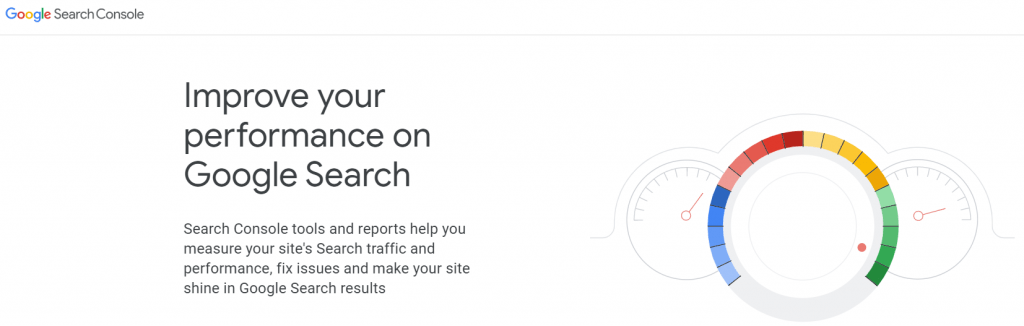
When you have logged into your Google account, head to the web master tools section. It will prompt you to ‘add a site’ from the main page, so simply click the button, type the relevant information into the box, and then click the continue button when prompted. You will then need to verify that you own the site, and although this step is skippable, it’s worth doing immediately. Follow the steps to verify that the site is yours, with the best option for verification being to go through the Google Analytics pages. Alternatively, use the ‘HTML upload file’ option, which can take a little more time. Whichever method you choose, once done, you only have to click the ‘verify’ button, and you’re all set up. You can access the Webmaster Tools dashboard.
Note: It may take time for full access to all of the potential data, so don’t panic if you are given very little information immediately.
One of the most valuable components of Google Webmaster tools is the site messaging section. Google will alert you to any issues that there may be with your site, and they can be a treasure-trove when it comes to identifying problems that are affecting your web pages’ performance.
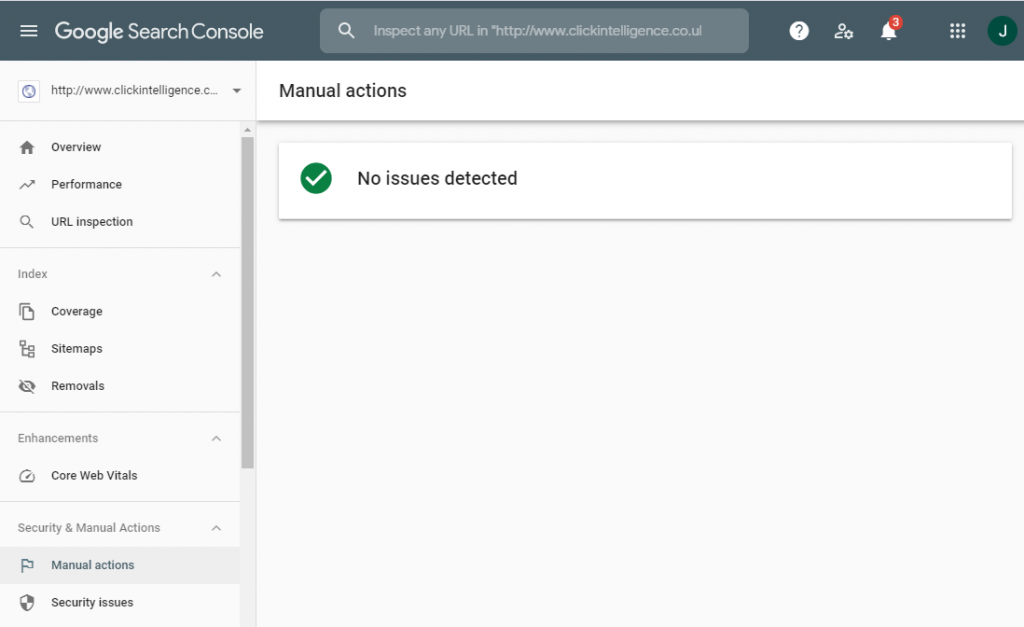
An algorithm performs not all of Google’s work, and you may find that a Google employee has reviewed your site. They will alert you if there are any violations of Google’s guidelines. To check this, go to the Webmaster Tools home page and select the website that you want to check for. On the menu, you will see ‘Search Traffic> Manual Actions’. In most cases, you will see the message ‘No manual webspam actions found’, which is always good news! If you do have any notifications, then they need to be taken seriously.
If you have actions applied to your website, then you will be penalized by Google, and they may not include you in any search engine results pages.
If actions have been taken, you will have a comprehensive description of the problem, including the issue’s exact location.
Note: You can request a manual review from Google, but you should only do this if you are confident that you have followed the Google guidelines as they are right now.
Go to the Tools homepage menu and select Crawl > Crawl ErrorsGoogle crawl errors are errors that prevent Google from accessing a page.. This will identify any of your pages that Google has not been able to crawl, and it will also highlight any HTTP errors. You will be able to access to all the data from the last 90 days, and it will be divided into two sections: Site errors and URL Errors. The Site Errors section will highlight any problems that Google has had in terms of site access. Any URL Errors that the Webmaster Tools identify will be broken down further and will be very specific about crawling issues. You will even get told if your site is working fine on a laptop but has problems with mobile viewing. Google Webmaster tools will present that data as a graphic, separating authentication problems that deny access to Google, as well as pages that are simply not found. Each problem will be ranked by priority.
Ensure that you have enabled your notifications so that if Google messages you about an issue, you can resolve it more quickly. It’s very easy to link your Webmaster Tools messaging to your personal email account. Simply go to their main page and select the gear/cog icon that you’ll be able to see in the top right corner. Choose the ‘preferences’ section and click on the box next to ‘enable email notifications’. Once this is done, you can then fine-tune the types of alerts that you want to be notified about and how those messages are delivered.
One of the most valuable sections of Webmaster Tools is the one called ‘security issues’. This section was specifically created to quickly identify any security problems that your site may be exposed to. If your site is hacked or suffers from a malware or SQL injection, then you need to know about it as soon as possible. One of the best aspects of Google Webmaster tools is that they will alert you to security issues and provide you with an extensive list of suggestions that can help you address and resolve those issues. In the event of a security breach, you will quickly be able to identify the source, take the required steps to repair any damage, and then submit a fresh request for a review to ensure that everything is as it should be.
You are now set up with Google Webmaster tools. The process of establishing your account and taking your first steps into its many functions and benefits can be very quick and easy. There is also a wide range of webmaster tools tutorial resources available that can take you deeper into the many functions that you now have at your fingertips.

It’s not just humans that use search anymore. Artificial intelligence plays a huge role in…

When a Google core update is being rolled out, digital marketers everywhere eagerly wait to…


Find out the secret code of how to get a rich snippet in Google.
Download our free guide of how to run a successful outreach campaign.

In 2026, digital PR services are essential for any brand wanting to build lasting authority…

Simply appearing on a search page isn’t enough anymore, not in today’s world driven by…

Follow vs nofollow links have been debated in digital marketing for years. Questions are often…

Citations are a long-standing SEO trust signal that helps increase visibility in local search results…

Picture this: you're working at an SEO agency, managing multiple clients and delivering strong results…
You may have heard that Google has rolled out a notable new update: the February…

Search is evolving quickly. Large Language Models (LLMs) and Google AI overviews now have a…

Automation is on the rise in just about every industry, and SEO is no exception…
Fill out the contact form or give us a call for a free consultation to determine the right digital marketing solutions for the growth of your business.

The team will usually respond within 1 hour.